Back
Instructions for Downloading AP Higher Education Score Reports Using the Web Service
Find out how to download AP score reports using the web service. Learn about authentication, scheduling downloads, and best practices to ensure smooth data integration with your institution’s systems.
A College Board professional account is required for using the web service. You can find instructions at Accessing AP Higher Education Score Reports.
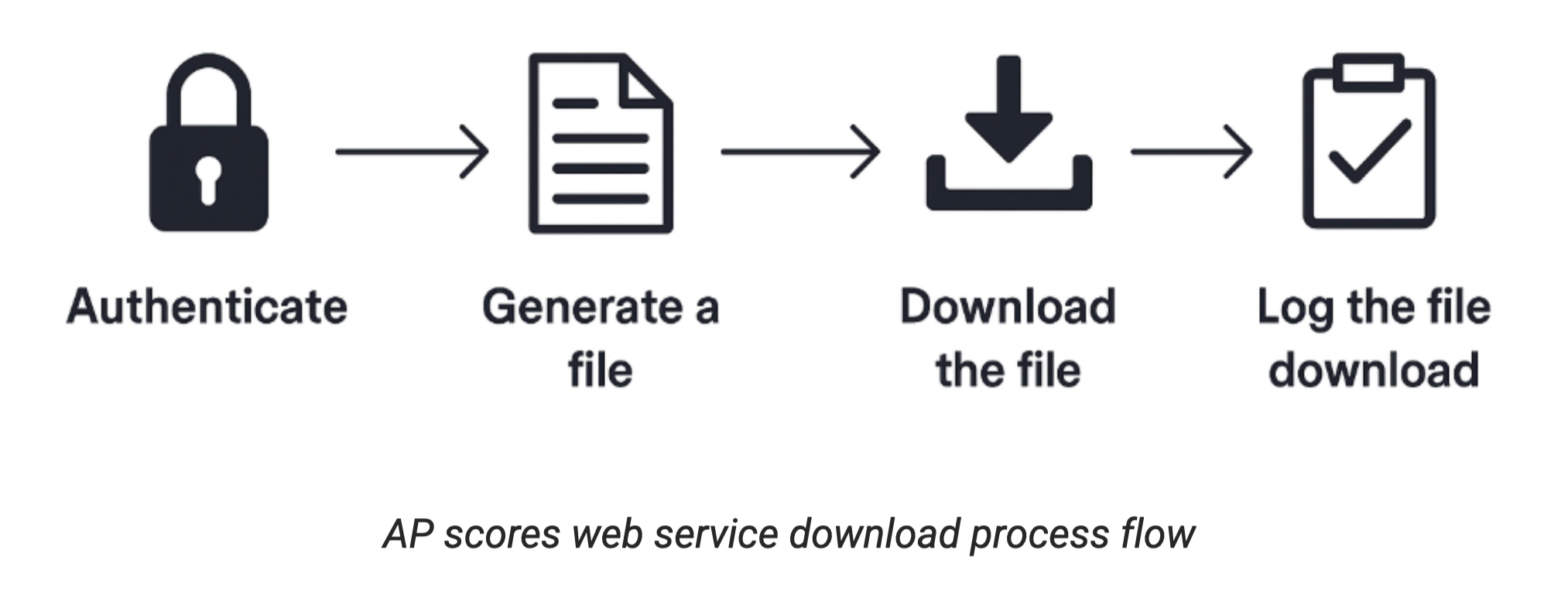
The AP Scores web service download process is as follows:
- Authenticate: Provide your login credentials (i.e., email and password) for your College Board professional account to receive an authorization token to be used in the remaining API calls.
- IMPORTANT: Prior to using an account for web service downloads, you must log in to AP Higher Education Score Reports and accept the site terms of use.
- Generate a file: Request a file generated for the appropriate institution (i.e., DI code). Files are available in both TXT fixed-width and CSV formats.
- Request a download type of “new” to retrieve all scores sent to the DI code since a download was last performed by this user account.
- Request a download type of “full” to receive all scores sent to the DI code since the start of the current reporting year, which usually starts on July 1.
- Download the file: Receive the download URL from the previous API call and make a GET request to download the file.
- Log the file download: Once you have successfully downloaded the file, make this API call to log the successful download in our system so we can correctly report new scores to you in the future.
How to Trigger Your IT System
There are two recommended ways to trigger your IT system to call the web service to download a file:
- Use the notification email as the trigger: Emails are sent to the email address registered with your user account daily whenever new scores have been made available to your institution in the past 24 hours. If no new score reports have been made available in the past 24 hours, no email notification will be sent. If you manage multiple campuses for your institution, you’ll receive individual email notifications per campus whenever new score reports become available.
IMPORTANT: You must log in with the user account to AP Higher Education Score Reports to activate email notifications. If you’re using your account for multiple institutions, you’ll need to select each one using the dropdown menu on the top right of the portal dashboard to receive all notification emails. - Schedule periodic attempts to generate and download a score report file: While new score reports can be made available to your institution at any time of day, you can schedule a designated time for file generation and download. You can set this schedule to daily, every other day, weekly, biweekly, or monthly based on the volume of score reports your institution receives and how often you need to process the data. If you attempt to generate a “new” file but no new scores have been sent to your institution since the last download, it will return a message saying no new reports are available when the File Generation API is called. Your system may exit as seen in the example scripts.
Security Measures
- The pre-signed URL to download the file is active for only 30 seconds. Ensure the fileGeneration and GET calls are executed within 30 seconds of each other to avoid expiration.
- Allow the following domains through your network firewall:
- https://aposrd-api-gw.collegeboard.org
- https://prod-ui-download.aposrd-prod.collegeboard.org/
- Make sure your account password is encoded as a base64 string in the initial Login call.
- Authentication headers are required in all API calls, including the download GET call.
- The transporting encryption is accomplished by SSL/TLS/HTTPS.
- There’s no client-side encryption enforced once the file is downloaded, so take all necessary steps to secure this file appropriately and meet your institution's security standards.